Understanding HTML Tags and Elements
“Breaking Down HTML into Simple, Learnable Pieces”
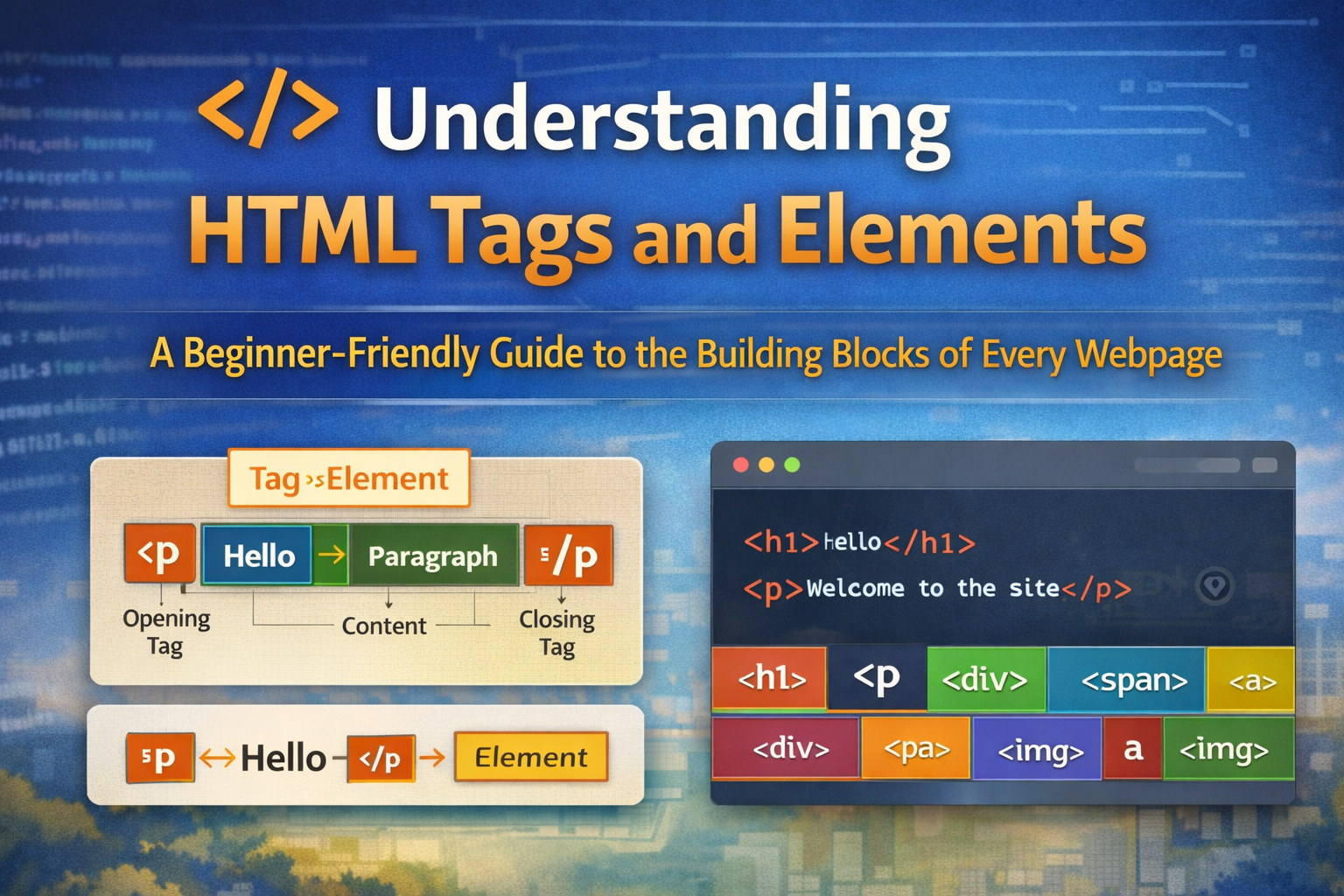
When we open any website, what we actually see in the browser is just the final visual result. Behind the scenes, every webpage is built using HTML.
Think of HTML as the skeleton of a webpage.
Just like bones give structure to a body, HTML gives structure to a website.
It tells the browser:
This is a heading
This is a paragraph
This is an image
This is a link
Without HTML, a webpage would have no organized content.
What is HTML and Why We Use It:-
HTML stands for HyperText Markup Language.
It is not a programming language.
It is a markup language used to describe the structure of content on the web.
We use HTML to:
Organize text
Add headings and paragraphs
Insert images and links
Create sections and layouts
What is an HTML Tag?
An HTML tag is a keyword wrapped in angle brackets.
Example:
<p>
This tells the browser:
“Start a paragraph here.”
Most HTML tags come in pairs:
An opening tag
A closing tag
The closing tag has a /.
<p> This is a paragraph </p>
<p>→ opening tag</p>→ closing tagThis is a paragraph→ content
Tag vs Element :-
A tag is just the name inside brackets:
<p>or</p>An element is the complete thing:
opening tag + content + closing tagSo this:
<p>Hello</p>is one full HTML element.
You can imagine it like a box:
Start of box → opening tag.
Stuff inside box → content.
End of box → closing tag.
Self-Closing Elements:-
Some elements do not wrap content.
They stand alone and don’t need a closing tag.Example:
  <img src="photo.jpg" alt="My photo">
  <br>
  <hr>
These are called void elements.
They insert something into the page:
<img>adds an image<br>adds a line break<hr>adds a horizontal line
There is no </img> or </br>.
Block-level vs Inline Elements:-
Block-level elements
Take the full width of the page
Start on a new line
Examples:
<h1>Heading</h1>
<p>Paragraph</p>
<div>Section</div>
Each appears on its own line.
Inline elements
Only take the space they need
Stay in the same line
Examples:
<span>Text</span>
<a href="#">Link</a>
<strong>Bold</strong>
They sit inside text without breaking the line.
Commonly Used HTML Tags
Headings:
<h1>Main title</h1>
<h2>Sub heading</h2>
Paragraph:
<p>This is a paragraph.</p>
Division:
<div>Content block</div>
Inline container:
<span>Small piece of text</span>
Link:
<a href="https://example.com">Visit site</a>
Image:
<img src="image.jpg" alt="Description">
Simple Example:-
<h1>My Website</h1>
<p>Welcome to my page.</p>
<div>
  <p>This is inside a div.</p>
  <span>Inline text</span>
</div>
<h1>creates a big heading<p>creates paragraphs<div>groups content<span>styles small inline parts
Summary:-
HTML is the structure of a webpage
Tags are the building blocks
An element = opening tag + content + closing tag
Some elements are self-closing (like
<img>)Block elements start new lines
Inline elements stay in the same line.


