How a Browser Works: A Beginner-Friendly Guide to Browser Internals
“From URL to Pixels: The hidden journey of every web page.”
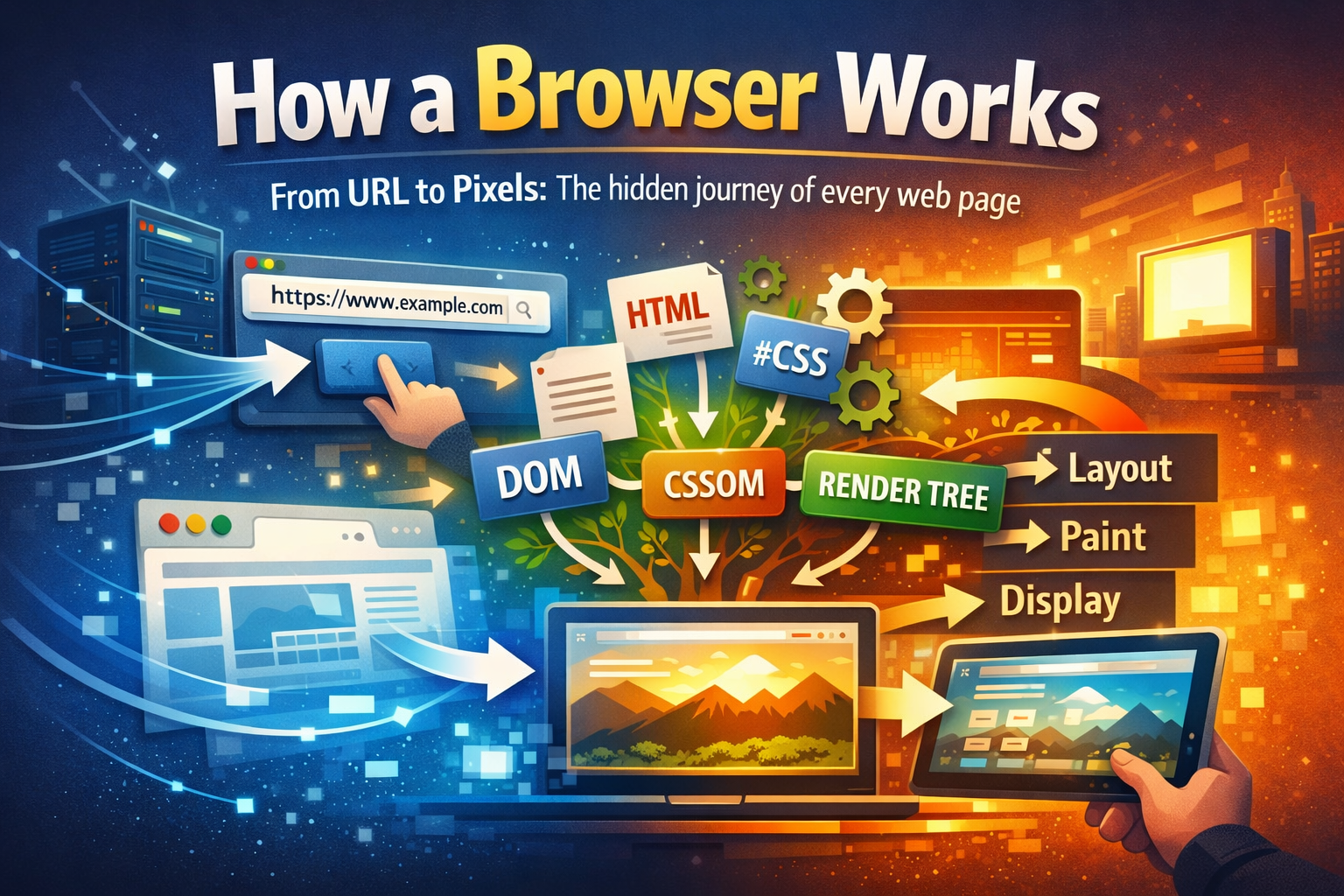
Have we ever wondered what really happens after we type a URL into our browser and press Enter?
It might feel instant, but behind the scenes our browser performs a long chain of coordinated steps. Think of the browser not as a single program, but as a team of specialized workers passing information to each other until pixels finally appear on our screen.
1. What is a Browser ?
A browser is more than “an app that opens websites”.
It is a translator between:
Human-friendly content (HTML, CSS, images, text)
Machine instructions that your computer can draw on the screen
We can think of it like a restaurant kitchen:
We (the user) place an order (enter a URL)
Ingredients are fetched from storage (network requests)
Chefs prepare the dish (parsing and layout)
The final plate is served (rendered pixels).
2. Main Parts of a Browser (High-Level):-
A browser is a collection of components working together:
User Interface (UI)
Address bar, back/forward buttons, tabs, bookmarks.Browser Engine
The coordinator. It passes data between parts.Rendering Engine
Turns HTML & CSS into visible content on the screen.Networking
Fetches files (HTML, CSS, JS, images) from the internet.JavaScript Engine
Runs JavaScript code.
3. Step One: Fetching the Page from the Internet:-
When we press Enter:
The browser contacts a server.
It asks: “Give me the HTML for this page.”
The server responds with HTML.
The browser may then request more files:
CSS files
JavaScript files
Images, fonts, etc.
All of this is handled by the networking part of the browser.
4. HTML → DOM (Building a Tree):-
The HTML file is just text.
The browser must understand its structure.
This process is called parsing.
HTML is converted into a DOM (Document Object Model), which is like a tree:
<body>
  <h1>Hello</h1>
  <p>World</p>
</body>
Becomes:
body
 ├─ h1
 │   └─ "Hello"
 └─ p
     └─ "World"
Think of the DOM as the page’s skeleton.
5. CSS → CSSOM (Styles Tree):-
CSS is also parsed, but into a different tree: the CSSOM.
If the DOM is the skeleton, the CSSOM is the clothing rules:
Colors
Sizes
Positions
Fonts
It tells the browser how each DOM node should look.
6. DOM + CSSOM → Render Tree:-
The browser combines structure (DOM) and style (CSSOM) into a Render Tree.
Only visible elements are included.
Hidden elements are skipped.
This tree answers:
👉 What should appear on screen and how should it look?
7. Layout (Reflow), Paint, Display:-
Now the browser turns the render tree into pixels:
Layout (Reflow)
Calculate exact positions and sizes of every element.Paint
Fill in colors, borders, shadows, text.Display (Compositing)
Put everything together and show it on the screen.
This is when we finally see the page.
8. What is Parsing?
Parsing means breaking something into meaningful structure.
Example:
1 + 2 * 3
Is not read left-to-right blindly.
It becomes a tree:
   +
  / \
 1   *
    / \
   2   3
The browser does the same with HTML and CSS:
Break text
Understand relationships
Build trees.
9. Full Flow: From URL to Pixels:-
We enter a URL
Browser fetches HTML via network.
HTML → DOM.
CSS → CSSOM.
DOM + CSSOM → Render Tree.
Render Tree → Layout.
Layout → Paint.
Pixels appear on screen.


